
Configuring access through Google Classroom
Use Google Classroom when students already receive class activities there. The setup is simple: prepare the LabsLand group, copy the access link or instructions for that group, add them to Google Classroom, and test the activity before students need it.
Video version
Section titled “Video version”Screenshot version
Section titled “Screenshot version”The steps below summarize the same flow, so the guide remains usable if the video does not load in the browser. The screenshots are illustrative; the exact Google Classroom interface can vary by account, language, and Google updates.
Before you start
Section titled “Before you start”Make sure:
- the LabsLand group exists
- the group has the right laboratories assigned
- students are expected to use Google Classroom for this class or course
- you know where students normally look for assignments, materials, or announcements
If the class is not using Google Classroom, use Configuring access through a link or your institution’s LMS flow instead.
1. Prepare the LabsLand access
Section titled “1. Prepare the LabsLand access”Open the LabsLand group and confirm that it contains the laboratories students should use. If you are using a direct access link, create or copy that link before opening Google Classroom.
Keep the group name and laboratory name visible while you work. This helps avoid pasting a link from the wrong group or course.
2. Create the Classroom activity
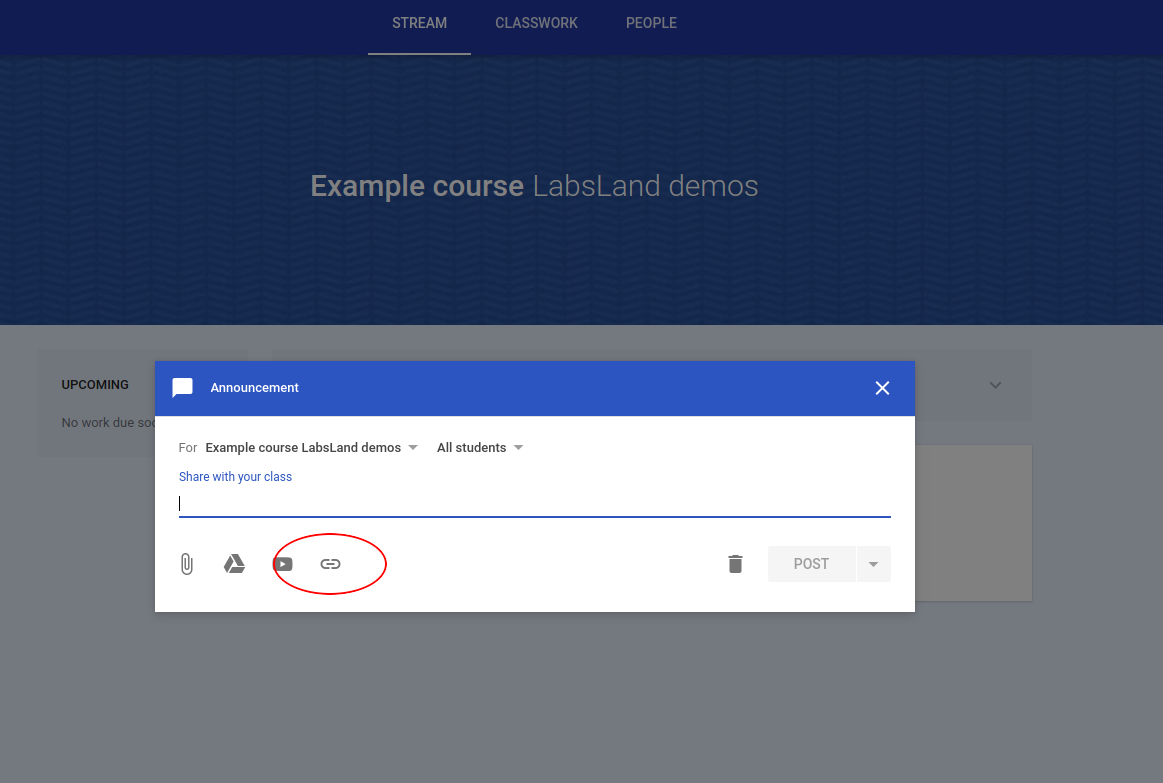
Section titled “2. Create the Classroom activity”In Google Classroom, open the course and create the assignment, material, or announcement where students should find the laboratory. Use the link button to attach the LabsLand access URL.
3. Paste the LabsLand link
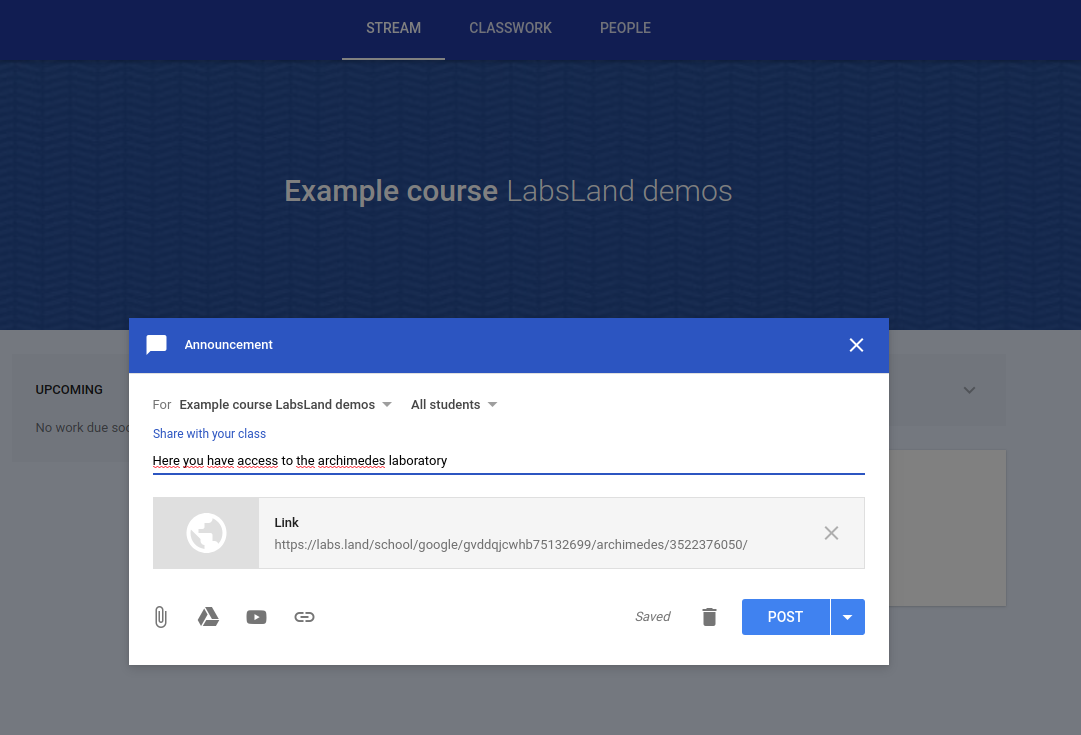
Section titled “3. Paste the LabsLand link”Paste the LabsLand access URL and add a short instruction telling students which laboratory to open and what they should do after launching it.
4. Publish and verify
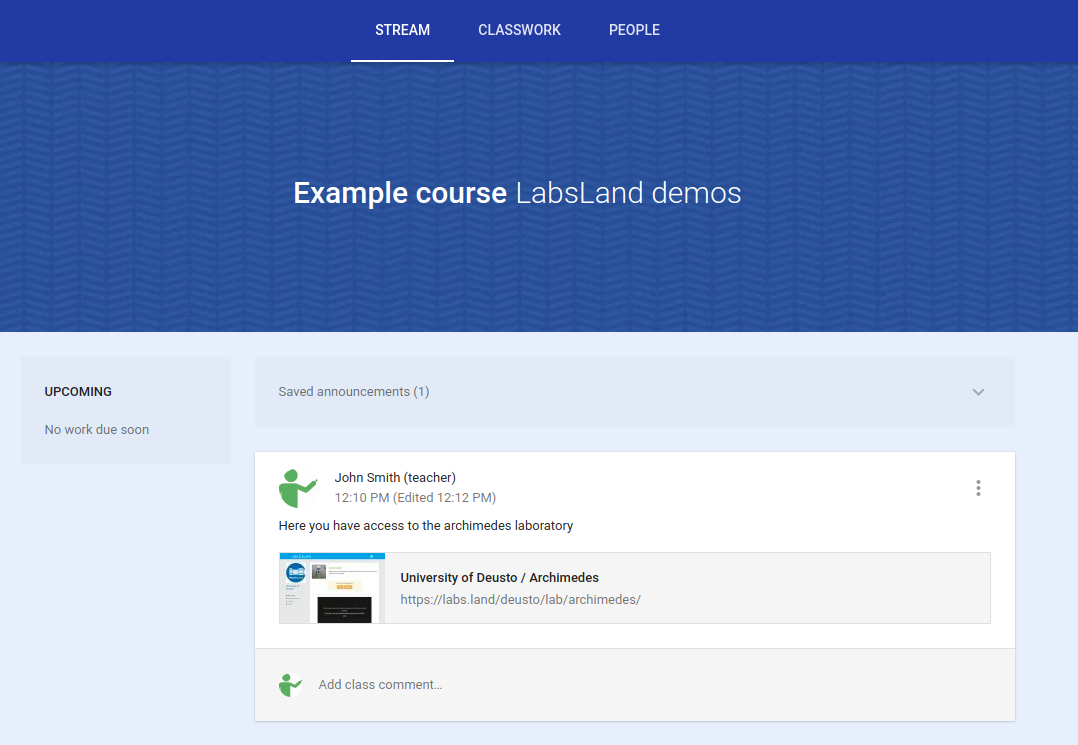
Section titled “4. Publish and verify”Publish the activity. Check that it appears in the place where students normally look for classwork. When possible, open the activity from a student account or a non-administrator browser session.
5. First launch permissions
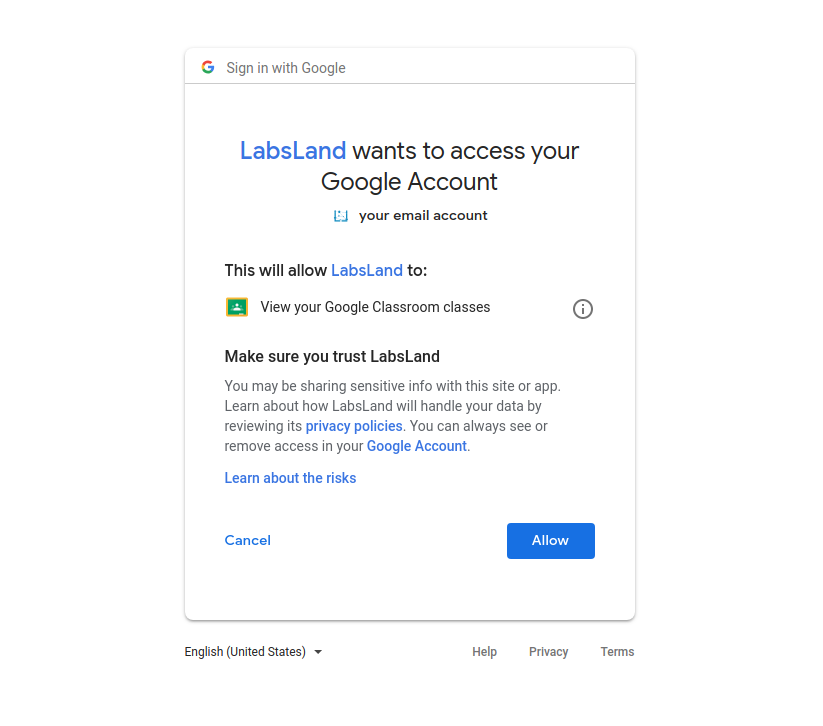
Section titled “5. First launch permissions”The first time a student opens the activity, Google may ask for permission to use their Classroom account. Tell students to use the same Google account they use for the class.
What to tell students
Section titled “What to tell students”Include:
- the name of the laboratory they should open
- any deadline, session time, or activity instructions
- whether they need to submit anything in Google Classroom after using the lab
- what to do if Google asks for account permission
- who to contact if the link does not open the expected laboratory
If access does not work
Section titled “If access does not work”Check that the link belongs to the correct LabsLand group, that the group has the expected laboratories assigned, and that the Classroom item is visible to the right students. If the problem continues, contact LabsLand with the LabsLand space, group, laboratory, Google Classroom course, and the link or activity students are using.
Other alternatives
Section titled “Other alternatives”If students should not enter through Google Classroom, use Configuring access through a link or your institution’s LMS flow instead.